Enables loading environment variables from a .env file, specifically used for storing and accessing the Hetzner Cloud API token required for authentication.
Enables installation via git clone from the repository.
Supports installation directly from GitHub repository using git clone or pip install from the repository URL.
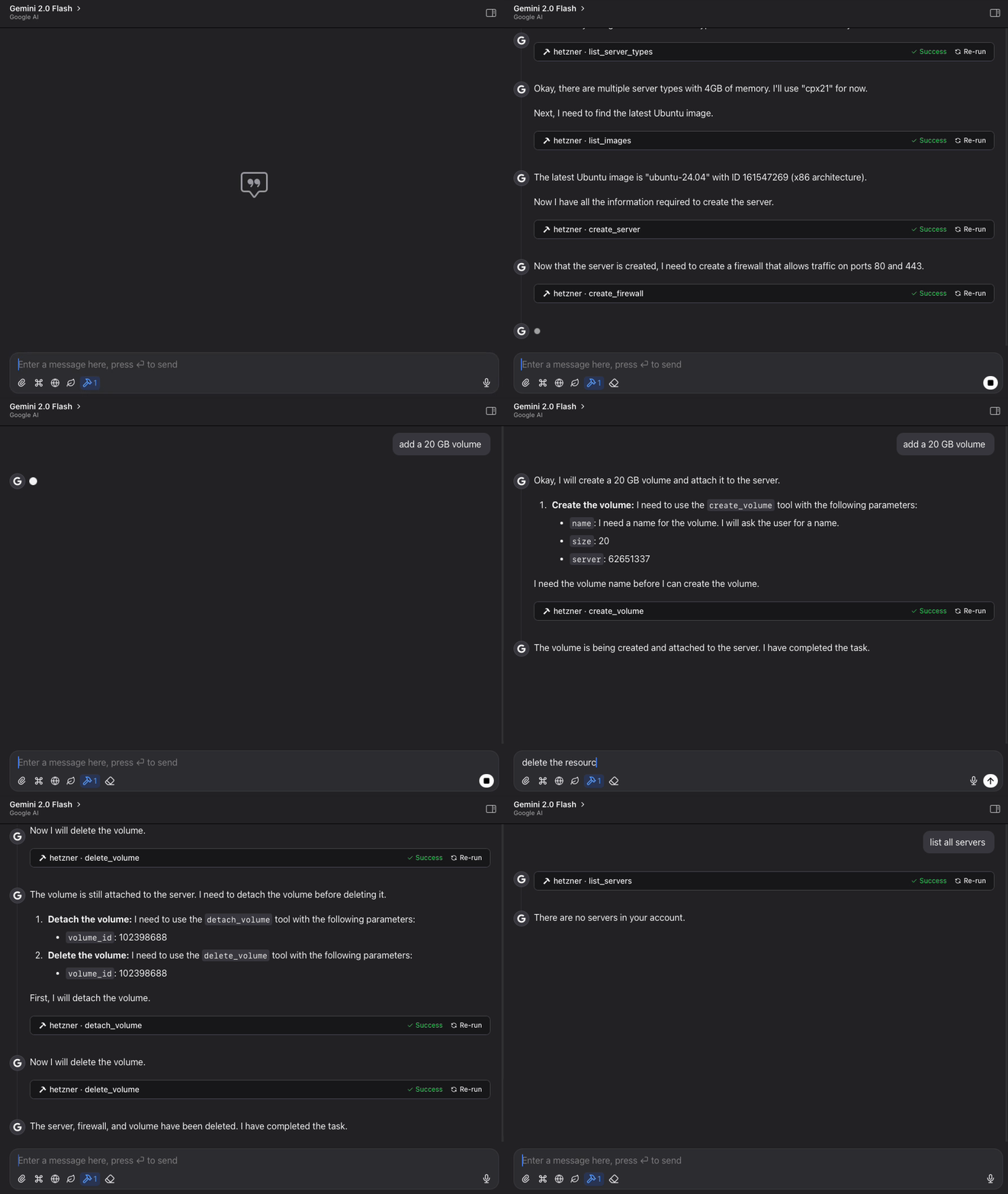
Allows managing Hetzner Cloud resources including servers, volumes, firewalls, and SSH keys. Supports creating, listing, powering on/off servers; creating, attaching, and resizing volumes; managing firewall rules; and working with SSH keys across Hetzner Cloud datacenters.
Requires Python 3.11+ as a runtime environment and supports installation via pip.
Supports working with Ubuntu server images, specifically mentioning Ubuntu 22.04 as an available option when creating servers.
Hetzner Cloud MCP Server
A Model Context Protocol (MCP) server for interacting with the Hetzner Cloud API. This server allows language models to manage Hetzner Cloud resources through structured functions.
Features
List, create, and manage Hetzner Cloud servers
Create, attach, detach, and resize volumes
Manage firewall rules and apply them to servers
Create and manage SSH keys for secure server access
View available images, server types, and locations
Power on/off and reboot servers
Simple, structured API for language model interaction
Claude Code integration for managing Hetzner resources directly from Claude
Related MCP server: Linear MCP Server
Requirements
Python 3.11+
Hetzner Cloud API token
Installation
Method 1: Direct Installation
Clone this repository:
Install dependencies:
Create a
.envfile and add your Hetzner Cloud API token:
Method 2: Install as a Package
After installing as a package, create a .env file in your working directory with your Hetzner Cloud API token.
Usage
Starting the Server
Option 1: Run the installed package:
Option 2: Run as a module:
The server supports two transport modes:
stdio(default): Standard I/O transport, typically used with Claude Codesse: Server-Sent Events transport, suitable for HTTP clients
By default, the server runs on localhost:8080. You can customize the host and port by:
Setting the
MCP_HOSTandMCP_PORTenvironment variables in your.envfileUsing the
--portcommand line argument (overrides the environment variable)
Using with Claude Code
To use with Claude Code, run the server with SSE transport:
Testing the API
A test client is included to verify the server functionality:
Example Workflows
Basic Server Management
Volume Management
Firewall Management
SSH Key Management
Infrastructure Planning
Available Functions
The MCP server provides the following functions:
Server Management
list_servers: List all servers in your Hetzner Cloud accountget_server: Get details about a specific servercreate_server: Create a new serverdelete_server: Delete a serverpower_on: Power on a serverpower_off: Power off a serverreboot: Reboot a server
Volume Management
list_volumes: List all volumes in your Hetzner Cloud accountget_volume: Get details about a specific volumecreate_volume: Create a new volumedelete_volume: Delete a volumeattach_volume: Attach a volume to a serverdetach_volume: Detach a volume from a serverresize_volume: Increase the size of a volume
Firewall Management
list_firewalls: List all firewalls in your Hetzner Cloud accountget_firewall: Get details about a specific firewallcreate_firewall: Create a new firewallupdate_firewall: Update firewall name or labelsdelete_firewall: Delete a firewallset_firewall_rules: Set or update firewall rulesapply_firewall_to_resources: Apply a firewall to servers or server groupsremove_firewall_from_resources: Remove a firewall from servers or server groups
SSH Key Management
list_ssh_keys: List all SSH keys in your Hetzner Cloud accountget_ssh_key: Get details about a specific SSH keycreate_ssh_key: Create a new SSH keyupdate_ssh_key: Update SSH key name or labelsdelete_ssh_key: Delete an SSH key
Information
list_images: List available OS imageslist_server_types: List available server typeslist_locations: List available datacenter locations
License
MIT