The Chargebee MCP Server connects LLMs to Chargebee's resources, enabling you to:
Search Chargebee's knowledge base: Access documentation, FAQs, release notes, and usage guides
Get immediate answers about Chargebee products and API services
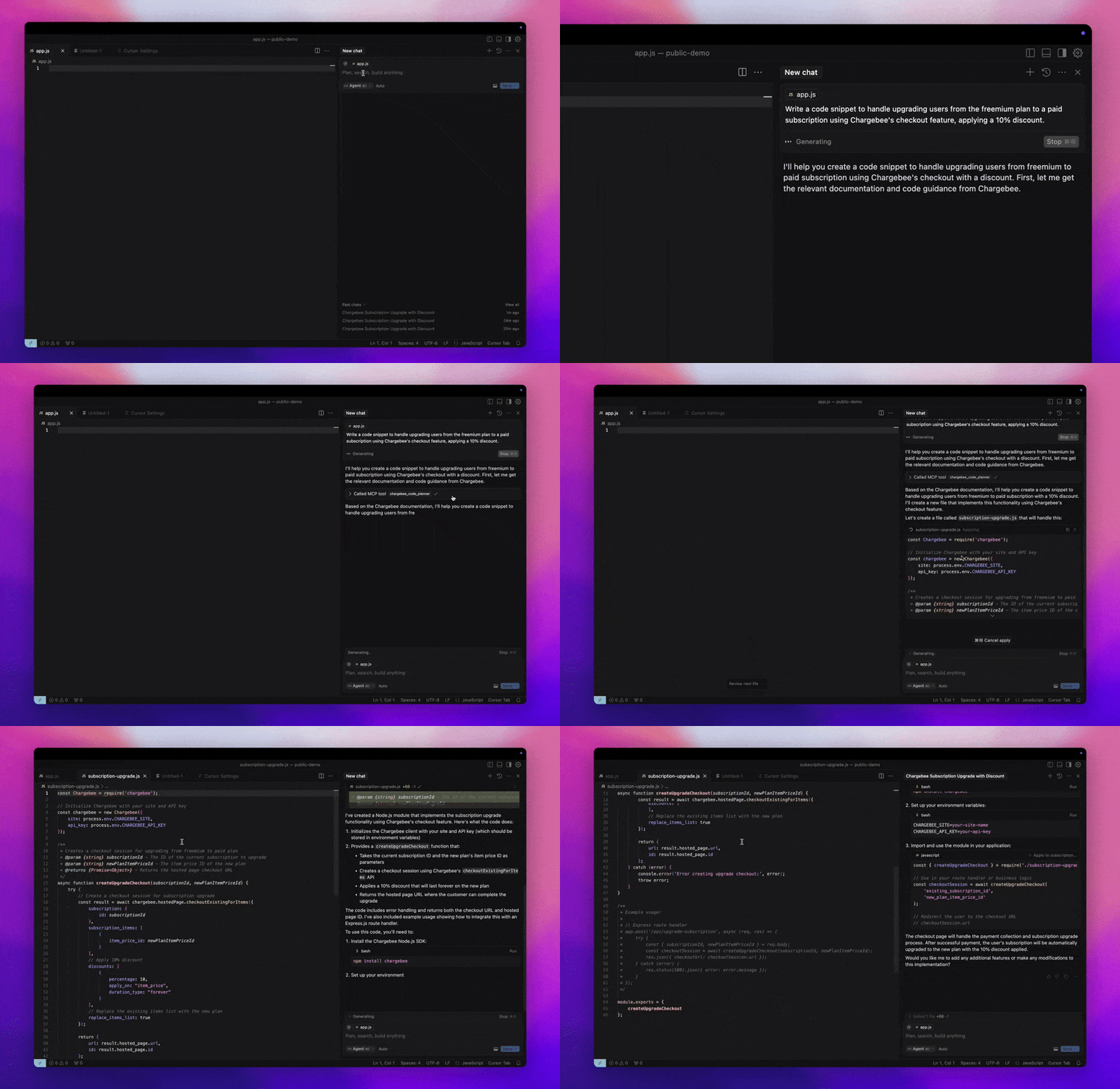
Generate context-aware code snippets tailored for specific integration needs
Create integration guides with structured code outlines and sample workflows for Chargebee APIs
Work with AI-powered tools including Cursor, Windsurf, Cline, and Claude Desktop
Enables running the Chargebee MCP server through npm's npx command, providing access to Chargebee's documentation and code generation capabilities.
Chargebee Model Context Protocol (MCP) Server

Model Context Protocol (MCP) is a standardized protocol designed to manage context between large language models (LLMs) and external systems.
The Chargebee MCP Server offers a robust set of tools to improve developer efficiency. It integrates with AI-powered code editors like Cursor, Windsurf, and Cline, as well as general-purpose tools such as Claude Desktop. It is compatible with any MCP Client.
With this MCP Server, you can:
Get immediate answers about the Chargebee products and API services.
Receive context-aware code snippets tailored to your integration needs.
Access Chargebee’s knowledge base, including:
Documentation
FAQs
Release notes
And much more
Prerequisites
Node.js LTS - The Chargebee MCP server requires the Node.js LTS version to function correctly.
Related MCP server: AutoGen MCP Server
Setup
To run the Chargebee MCP server using Node.js npx, execute the following command:
Available Tools
Tool | Description |
| Search Chargebee's documentation to retrieve detailed information and usage guides. |
| Generate structured code outlines and sample code for integrating Chargebee's APIs and features. |
Installation
Cursor
To add this server to Cursor IDE:
Navigate to
Cursor Settings>MCP.Click
+ Add new Global MCP Server.Add the following configuration to your global
.cursor/mcp.jsonfile:
Refer to the Cursor documentation for additional details. Note: You can also add this to your project-specific Cursor configuration (supported in Cursor 0.46+).
Windsurf
To set up MCP with Cascade:
Open Windsurf and navigate to
Settings>Advanced Settingsor use the Command Palette >Open Windsurf Settings Page.Scroll to the Cascade section to add a new server, view existing servers, or access the raw JSON config file at
mcp_config.json.Click “Add custom server +” to include the Chargebee MCP server directly in
mcp_config.json:
Refer to the Windsurf documentation for more information.
Cline
Manually add the following JSON to your cline_mcp_settings.json file via the Cline MCP Server settings:
Roo Code
Access the MCP settings by selecting Edit MCP Settings in Roo Code settings or using the Roo Code: Open MCP Config command in the VS Code command palette:
Claude
Add the following configuration to your claude_desktop_config.json file. Refer to the Claude Desktop documentation for more details:
CLI
You can also run the server as a CLI by executing the following command:
Contribution
To contribute to this project, refer to the contribution guide.