docs-develop-build-server.md•18.8 kB
[Model Context Protocol home page](https://modelcontextprotocol.io/)
Search...
Ctrl K
Search...
Navigation
Develop with MCP
Build an MCP server
[Documentation](https://modelcontextprotocol.io/docs/getting-started/intro) [Specification](https://modelcontextprotocol.io/specification/2025-06-18) [Community](https://modelcontextprotocol.io/community/communication) [About MCP](https://modelcontextprotocol.io/about)
On this page
- [What we’ll be building](https://modelcontextprotocol.io/docs/develop/build-server#what-we%E2%80%99ll-be-building)
- [Core MCP Concepts](https://modelcontextprotocol.io/docs/develop/build-server#core-mcp-concepts)
- [Prerequisite knowledge](https://modelcontextprotocol.io/docs/develop/build-server#prerequisite-knowledge)
- [Logging in MCP Servers](https://modelcontextprotocol.io/docs/develop/build-server#logging-in-mcp-servers)
- [Best Practices](https://modelcontextprotocol.io/docs/develop/build-server#best-practices)
- [Quick Examples](https://modelcontextprotocol.io/docs/develop/build-server#quick-examples)
- [System requirements](https://modelcontextprotocol.io/docs/develop/build-server#system-requirements)
- [Set up your environment](https://modelcontextprotocol.io/docs/develop/build-server#set-up-your-environment)
- [Building your server](https://modelcontextprotocol.io/docs/develop/build-server#building-your-server)
- [Importing packages and setting up the instance](https://modelcontextprotocol.io/docs/develop/build-server#importing-packages-and-setting-up-the-instance)
- [Helper functions](https://modelcontextprotocol.io/docs/develop/build-server#helper-functions)
- [Implementing tool execution](https://modelcontextprotocol.io/docs/develop/build-server#implementing-tool-execution)
- [Running the server](https://modelcontextprotocol.io/docs/develop/build-server#running-the-server)
- [Testing your server with Claude for Desktop](https://modelcontextprotocol.io/docs/develop/build-server#testing-your-server-with-claude-for-desktop)
- [What’s happening under the hood](https://modelcontextprotocol.io/docs/develop/build-server#what%E2%80%99s-happening-under-the-hood)
- [Troubleshooting](https://modelcontextprotocol.io/docs/develop/build-server#troubleshooting)
- [Next steps](https://modelcontextprotocol.io/docs/develop/build-server#next-steps)
In this tutorial, we’ll build a simple MCP weather server and connect it to a host, Claude for Desktop.
### [](https://modelcontextprotocol.io/docs/develop/build-server\#what-we%E2%80%99ll-be-building) What we’ll be building
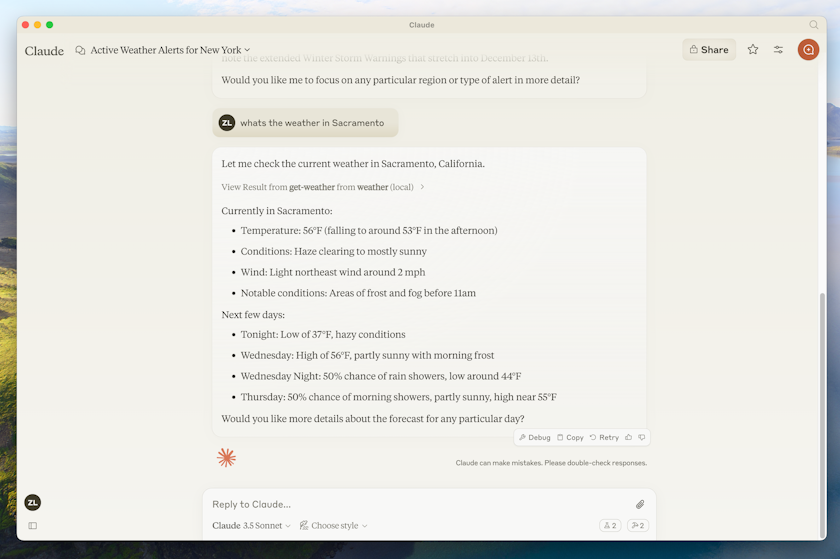
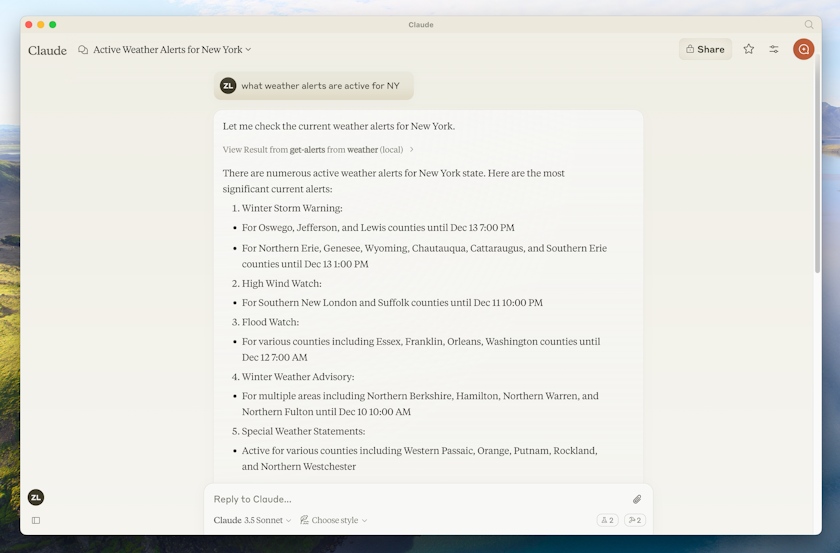
We’ll build a server that exposes two tools: `get_alerts` and `get_forecast`. Then we’ll connect the server to an MCP host (in this case, Claude for Desktop):
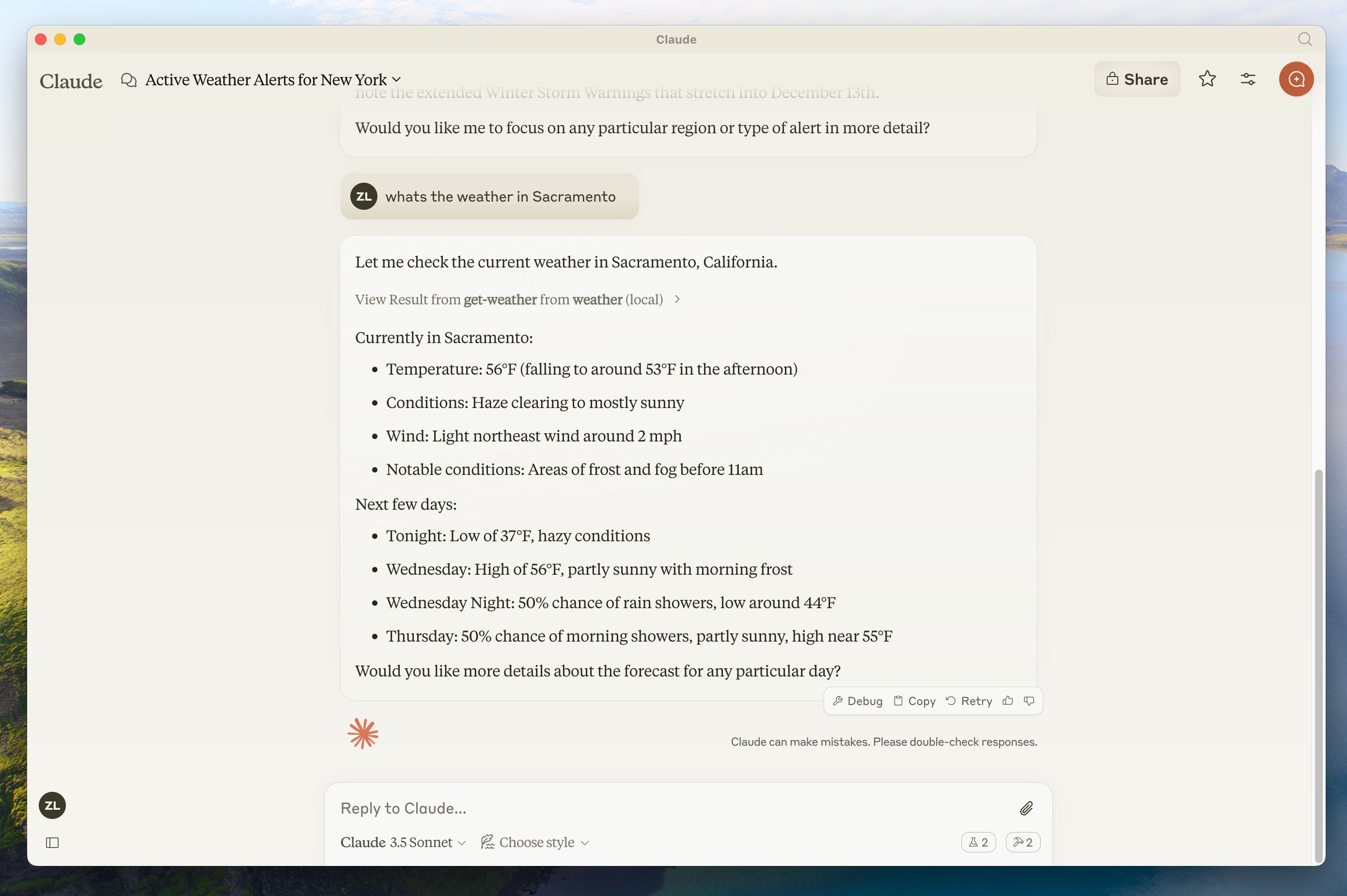
Servers can connect to any client. We’ve chosen Claude for Desktop here for simplicity, but we also have guides on [building your own client](https://modelcontextprotocol.io/docs/develop/build-client) as well as a [list of other clients here](https://modelcontextprotocol.io/clients).
### [](https://modelcontextprotocol.io/docs/develop/build-server\#core-mcp-concepts) Core MCP Concepts
MCP servers can provide three main types of capabilities:
1. **[Resources](https://modelcontextprotocol.io/docs/learn/server-concepts#resources)**: File-like data that can be read by clients (like API responses or file contents)
2. **[Tools](https://modelcontextprotocol.io/docs/learn/server-concepts#tools)**: Functions that can be called by the LLM (with user approval)
3. **[Prompts](https://modelcontextprotocol.io/docs/learn/server-concepts#prompts)**: Pre-written templates that help users accomplish specific tasks
This tutorial will primarily focus on tools.
- Python
- Node
- Java
- Kotlin
- C#
Let’s get started with building our weather server! [You can find the complete code for what we’ll be building here.](https://github.com/modelcontextprotocol/quickstart-resources/tree/main/weather-server-python)
### [](https://modelcontextprotocol.io/docs/develop/build-server\#prerequisite-knowledge) Prerequisite knowledge
This quickstart assumes you have familiarity with:
- Python
- LLMs like Claude
### [](https://modelcontextprotocol.io/docs/develop/build-server\#logging-in-mcp-servers) Logging in MCP Servers
When implementing MCP servers, be careful about how you handle logging:**For STDIO-based servers:** Never write to standard output (stdout). This includes:
- `print()` statements in Python
- `console.log()` in JavaScript
- `fmt.Println()` in Go
- Similar stdout functions in other languages
Writing to stdout will corrupt the JSON-RPC messages and break your server.**For HTTP-based servers:** Standard output logging is fine since it doesn’t interfere with HTTP responses.
### [](https://modelcontextprotocol.io/docs/develop/build-server\#best-practices) Best Practices
1. Use a logging library that writes to stderr or files.
### [](https://modelcontextprotocol.io/docs/develop/build-server\#quick-examples) Quick Examples
Copy
```
# ❌ Bad (STDIO)
print("Processing request")
# ✅ Good (STDIO)
import logging
logging.info("Processing request")
```
### [](https://modelcontextprotocol.io/docs/develop/build-server\#system-requirements) System requirements
- Python 3.10 or higher installed.
- You must use the Python MCP SDK 1.2.0 or higher.
### [](https://modelcontextprotocol.io/docs/develop/build-server\#set-up-your-environment) Set up your environment
First, let’s install `uv` and set up our Python project and environment:
macOS/Linux
Windows
Copy
```
curl -LsSf https://astral.sh/uv/install.sh | sh
```
Make sure to restart your terminal afterwards to ensure that the `uv` command gets picked up.Now, let’s create and set up our project:
macOS/Linux
Windows
Copy
```
# Create a new directory for our project
uv init weather
cd weather
# Create virtual environment and activate it
uv venv
source .venv/bin/activate
# Install dependencies
uv add "mcp[cli]" httpx
# Create our server file
touch weather.py
```
Now let’s dive into building your server.
## [](https://modelcontextprotocol.io/docs/develop/build-server\#building-your-server) Building your server
### [](https://modelcontextprotocol.io/docs/develop/build-server\#importing-packages-and-setting-up-the-instance) Importing packages and setting up the instance
Add these to the top of your `weather.py`:
Copy
```
from typing import Any
import httpx
from mcp.server.fastmcp import FastMCP
# Initialize FastMCP server
mcp = FastMCP("weather")
# Constants
NWS_API_BASE = "https://api.weather.gov"
USER_AGENT = "weather-app/1.0"
```
The FastMCP class uses Python type hints and docstrings to automatically generate tool definitions, making it easy to create and maintain MCP tools.
### [](https://modelcontextprotocol.io/docs/develop/build-server\#helper-functions) Helper functions
Next, let’s add our helper functions for querying and formatting the data from the National Weather Service API:
Copy
```
async def make_nws_request(url: str) -> dict[str, Any] | None:
"""Make a request to the NWS API with proper error handling."""
headers = {
"User-Agent": USER_AGENT,
"Accept": "application/geo+json"
}
async with httpx.AsyncClient() as client:
try:
response = await client.get(url, headers=headers, timeout=30.0)
response.raise_for_status()
return response.json()
except Exception:
return None
def format_alert(feature: dict) -> str:
"""Format an alert feature into a readable string."""
props = feature["properties"]
return f"""
Event: {props.get('event', 'Unknown')}
Area: {props.get('areaDesc', 'Unknown')}
Severity: {props.get('severity', 'Unknown')}
Description: {props.get('description', 'No description available')}
Instructions: {props.get('instruction', 'No specific instructions provided')}
"""
```
### [](https://modelcontextprotocol.io/docs/develop/build-server\#implementing-tool-execution) Implementing tool execution
The tool execution handler is responsible for actually executing the logic of each tool. Let’s add it:
Copy
```
@mcp.tool()
async def get_alerts(state: str) -> str:
"""Get weather alerts for a US state.
Args:
state: Two-letter US state code (e.g. CA, NY)
"""
url = f"{NWS_API_BASE}/alerts/active/area/{state}"
data = await make_nws_request(url)
if not data or "features" not in data:
return "Unable to fetch alerts or no alerts found."
if not data["features"]:
return "No active alerts for this state."
alerts = [format_alert(feature) for feature in data["features"]]
return "\n---\n".join(alerts)
@mcp.tool()
async def get_forecast(latitude: float, longitude: float) -> str:
"""Get weather forecast for a location.
Args:
latitude: Latitude of the location
longitude: Longitude of the location
"""
# First get the forecast grid endpoint
points_url = f"{NWS_API_BASE}/points/{latitude},{longitude}"
points_data = await make_nws_request(points_url)
if not points_data:
return "Unable to fetch forecast data for this location."
# Get the forecast URL from the points response
forecast_url = points_data["properties"]["forecast"]
forecast_data = await make_nws_request(forecast_url)
if not forecast_data:
return "Unable to fetch detailed forecast."
# Format the periods into a readable forecast
periods = forecast_data["properties"]["periods"]
forecasts = []
for period in periods[:5]: # Only show next 5 periods
forecast = f"""
{period['name']}:
Temperature: {period['temperature']}°{period['temperatureUnit']}
Wind: {period['windSpeed']} {period['windDirection']}
Forecast: {period['detailedForecast']}
"""
forecasts.append(forecast)
return "\n---\n".join(forecasts)
```
### [](https://modelcontextprotocol.io/docs/develop/build-server\#running-the-server) Running the server
Finally, let’s initialize and run the server:
Copy
```
if __name__ == "__main__":
# Initialize and run the server
mcp.run(transport='stdio')
```
Your server is complete! Run `uv run weather.py` to start the MCP server, which will listen for messages from MCP hosts.Let’s now test your server from an existing MCP host, Claude for Desktop.
## [](https://modelcontextprotocol.io/docs/develop/build-server\#testing-your-server-with-claude-for-desktop) Testing your server with Claude for Desktop
Claude for Desktop is not yet available on Linux. Linux users can proceed to the [Building a client](https://modelcontextprotocol.io/docs/develop/build-client) tutorial to build an MCP client that connects to the server we just built.
First, make sure you have Claude for Desktop installed. [You can install the latest version
here.](https://claude.ai/download) If you already have Claude for Desktop, **make sure it’s updated to the latest version.**We’ll need to configure Claude for Desktop for whichever MCP servers you want to use. To do this, open your Claude for Desktop App configuration at `~/Library/Application Support/Claude/claude_desktop_config.json` in a text editor. Make sure to create the file if it doesn’t exist.For example, if you have [VS Code](https://code.visualstudio.com/) installed:
macOS/Linux
Windows
Copy
```
code ~/Library/Application\ Support/Claude/claude_desktop_config.json
```
You’ll then add your servers in the `mcpServers` key. The MCP UI elements will only show up in Claude for Desktop if at least one server is properly configured.In this case, we’ll add our single weather server like so:
macOS/Linux
Windows
Copy
```
{
"mcpServers": {
"weather": {
"command": "uv",
"args": [
"--directory",
"/ABSOLUTE/PATH/TO/PARENT/FOLDER/weather",
"run",
"weather.py"
]
}
}
}
```
You may need to put the full path to the `uv` executable in the `command` field. You can get this by running `which uv` on macOS/Linux or `where uv` on Windows.
Make sure you pass in the absolute path to your server. You can get this by running `pwd` on macOS/Linux or `cd` on Windows Command Prompt. On Windows, remember to use double backslashes ( `\\`) or forward slashes ( `/`) in the JSON path.
This tells Claude for Desktop:
1. There’s an MCP server named “weather”
2. To launch it by running `uv --directory /ABSOLUTE/PATH/TO/PARENT/FOLDER/weather run weather.py`
Save the file, and restart **Claude for Desktop**.
### [](https://modelcontextprotocol.io/docs/develop/build-server\#test-with-commands) Test with commands
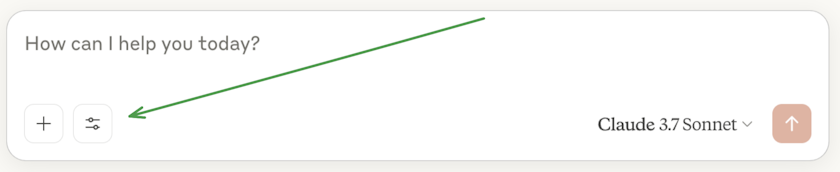
Let’s make sure Claude for Desktop is picking up the two tools we’ve exposed in our `weather` server. You can do this by looking for the “Search and tools”  icon:
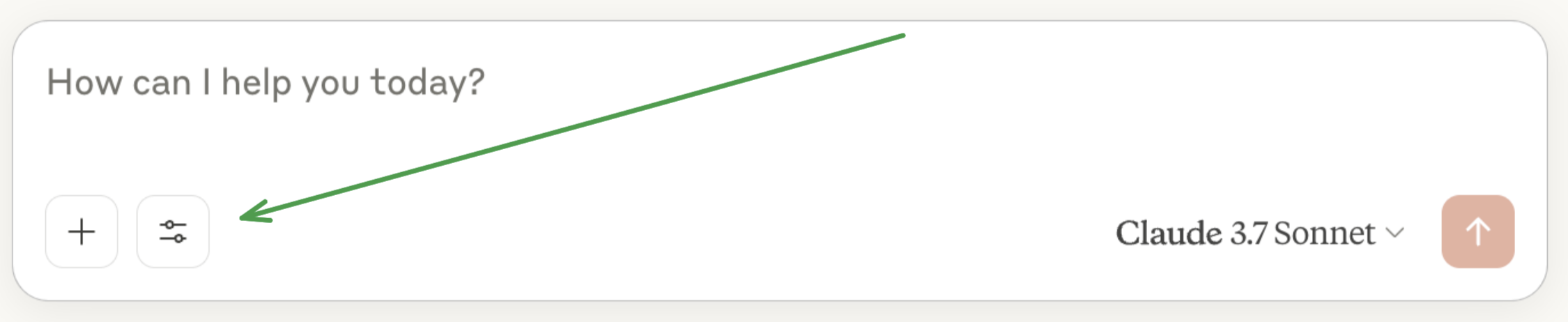
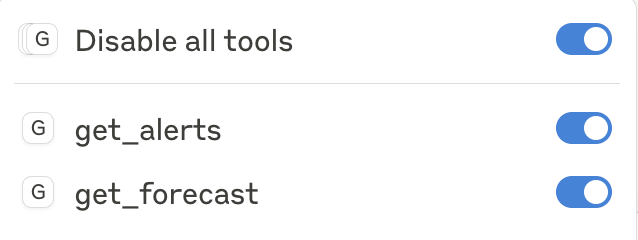
After clicking on the slider icon, you should see two tools listed:
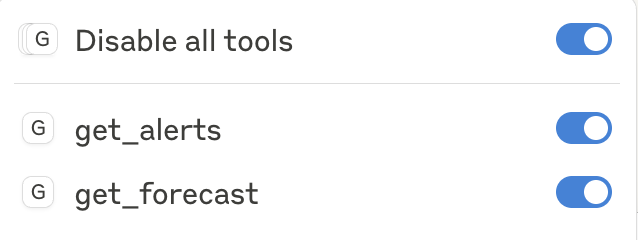
If your server isn’t being picked up by Claude for Desktop, proceed to the [Troubleshooting](https://modelcontextprotocol.io/docs/develop/build-server#troubleshooting) section for debugging tips.If the tool settings icon has shown up, you can now test your server by running the following commands in Claude for Desktop:
- What’s the weather in Sacramento?
- What are the active weather alerts in Texas?


Since this is the US National Weather service, the queries will only work for US locations.
## [](https://modelcontextprotocol.io/docs/develop/build-server\#what%E2%80%99s-happening-under-the-hood) What’s happening under the hood
When you ask a question:
1. The client sends your question to Claude
2. Claude analyzes the available tools and decides which one(s) to use
3. The client executes the chosen tool(s) through the MCP server
4. The results are sent back to Claude
5. Claude formulates a natural language response
6. The response is displayed to you!
## [](https://modelcontextprotocol.io/docs/develop/build-server\#troubleshooting) Troubleshooting
Claude for Desktop Integration Issues
**Getting logs from Claude for Desktop**Claude.app logging related to MCP is written to log files in `~/Library/Logs/Claude`:
- `mcp.log` will contain general logging about MCP connections and connection failures.
- Files named `mcp-server-SERVERNAME.log` will contain error (stderr) logging from the named server.
You can run the following command to list recent logs and follow along with any new ones:
Copy
```
# Check Claude's logs for errors
tail -n 20 -f ~/Library/Logs/Claude/mcp*.log
```
**Server not showing up in Claude**
1. Check your `claude_desktop_config.json` file syntax
2. Make sure the path to your project is absolute and not relative
3. Restart Claude for Desktop completely
**Tool calls failing silently**If Claude attempts to use the tools but they fail:
1. Check Claude’s logs for errors
2. Verify your server builds and runs without errors
3. Try restarting Claude for Desktop
**None of this is working. What do I do?**Please refer to our [debugging guide](https://modelcontextprotocol.io/legacy/tools/debugging) for better debugging tools and more detailed guidance.
Weather API Issues
**Error: Failed to retrieve grid point data**This usually means either:
1. The coordinates are outside the US
2. The NWS API is having issues
3. You’re being rate limited
Fix:
- Verify you’re using US coordinates
- Add a small delay between requests
- Check the NWS API status page
**Error: No active alerts for \\[STATE\\]**This isn’t an error - it just means there are no current weather alerts for that state. Try a different state or check during severe weather.
For more advanced troubleshooting, check out our guide on [Debugging MCP](https://modelcontextprotocol.io/legacy/tools/debugging)
## [](https://modelcontextprotocol.io/docs/develop/build-server\#next-steps) Next steps
[**Building a client** \\
\\
Learn how to build your own MCP client that can connect to your server](https://modelcontextprotocol.io/docs/develop/build-client) [**Example servers** \\
\\
Check out our gallery of official MCP servers and implementations](https://modelcontextprotocol.io/examples) [**Debugging Guide** \\
\\
Learn how to effectively debug MCP servers and integrations](https://modelcontextprotocol.io/legacy/tools/debugging) [**Building MCP with LLMs** \\
\\
Learn how to use LLMs like Claude to speed up your MCP development](https://modelcontextprotocol.io/tutorials/building-mcp-with-llms)
Was this page helpful?
YesNo
[Connect to remote MCP Servers](https://modelcontextprotocol.io/docs/develop/connect-remote-servers) [Build an MCP client](https://modelcontextprotocol.io/docs/develop/build-client)
Assistant
Responses are generated using AI and may contain mistakes.